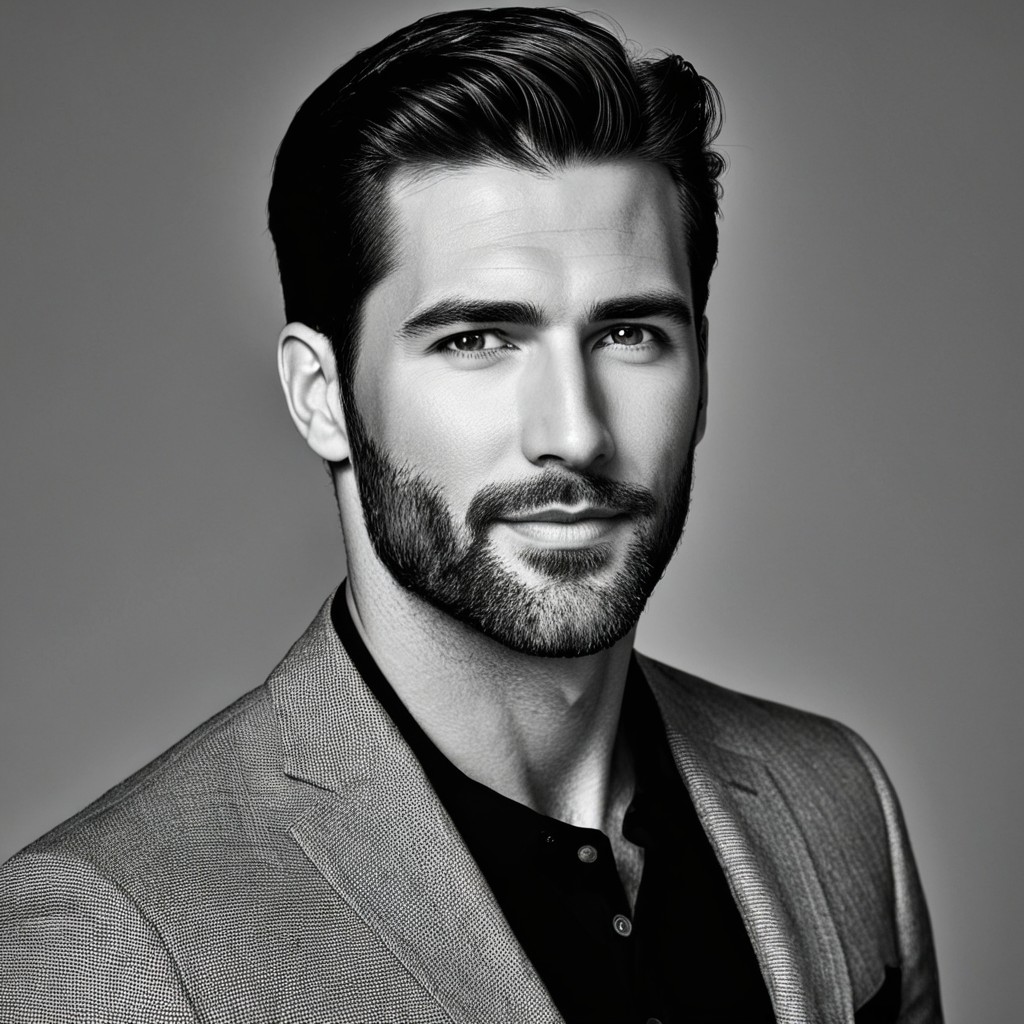
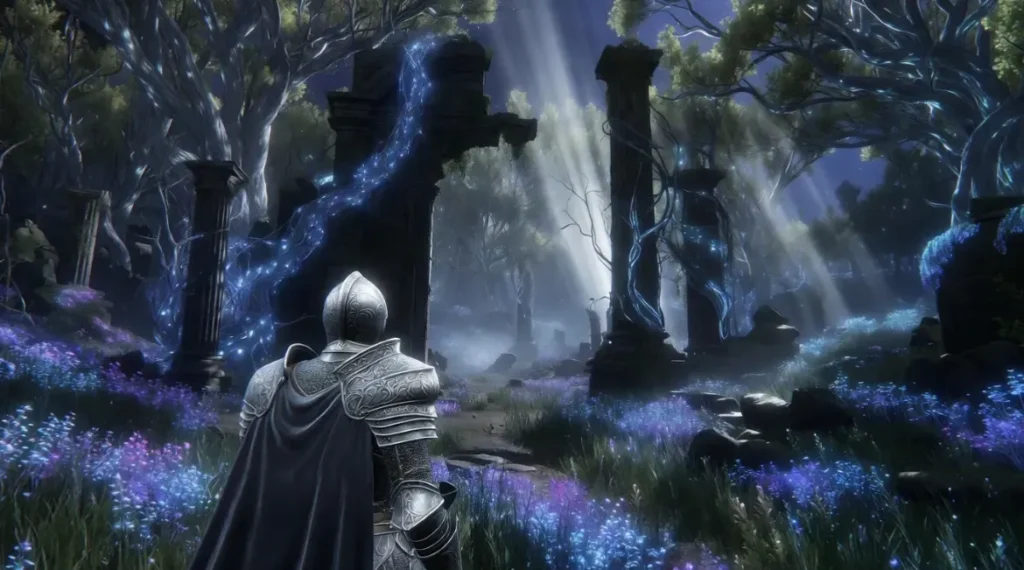
Of all the capabilities in modern AI video tools, image-to-video conversion may be the most practically useful. Everyone has photos — product shots, artwork, designs, old family pictures, brand assets — and turning a still image into convincing motion unlocks value from content you already own. This guide is a deep dive into the image-to-video feature in Grok Imagine: how it works, what it does well, where it struggles, and the techniques that produce the best results.
You can follow along with your own images at Grok Imagine, where the free tier includes image-to-video generation.
What Image-to-Video Actually Does
Image-to-video takes a still image as the foundation and generates motion from it: camera movement through the scene, animation of elements within the frame, environmental effects like wind or water or light changes, and synchronized ambient audio. The source image anchors the composition, style, and content, while your text prompt directs what moves and how.
This anchoring is the key advantage over pure text-to-video. With text alone, you’re describing a scene and hoping the model’s interpretation matches your vision. With an image foundation, the scene already exists — you’re only directing the motion, which is a much more controllable problem.
Why Start From an Image
Three practical reasons make image-to-video the preferred workflow for many use cases.
Consistency. When you need a specific product, character, artwork, or brand asset to appear accurately, a source image guarantees fidelity in a way text description never can. The model animates what’s actually in the picture.
Efficiency. Generating a still image costs one or two credits; generating video costs six or more. The smart workflow is to perfect your composition cheaply as a still, then spend video credits only on compositions you’ve already validated. This two-stage approach can cut total credit consumption in half.
Control. Separating the “what does it look like” decision from the “how does it move” decision lets you iterate on each independently. Photographers and designers especially appreciate this, because it maps to how they already think.
The Core Workflow
Step one: choose or create your source image. Higher-resolution, well-composed images produce better video. The model amplifies what it’s given — a muddy, cluttered source produces muddy, cluttered motion.
Step two: upload and write a motion prompt. Your prompt should focus almost entirely on motion and atmosphere, not on describing the image content (the model can see it). Good motion prompts: “slow camera push-in, steam rising gently, dust particles drifting in the light beam” or “subtle parallax drift, leaves rustling, soft wind.”
Step three: generate and evaluate. Watch for the two most common issues: unwanted morphing of key subjects, and motion that’s too aggressive for the scene. Both are fixable in the next iteration.
Step four: refine the motion direction. If the result morphed your subject, add stabilizing language: “subject remains still, only camera moves.” If motion was too subtle, escalate one notch: “gentle drift” → “slow tracking shot.”
Motion Vocabulary That Works
The difference between amateur and professional-looking results usually comes down to motion language. These categories consistently produce reliable effects in Grok Imagine AI:
Camera moves: push-in, pull-back, lateral tracking, slow orbit, tilt up, parallax drift, handheld sway. Specify speed: “slow,” “gentle,” “gradual” produce more usable results than unmodified verbs.
Environmental motion: rising steam, drifting fog, falling snow, rain on glass, flickering candlelight, rippling water, swaying grass, floating dust particles. Environmental effects are the safest motion type because they animate atmosphere without touching your subject.
Subject motion: blinking, breathing, hair moving in wind, fabric swaying, slow head turn. Use sparingly and one at a time — stacking subject motions is the fastest route to morphing artifacts.
Light motion: sun rays shifting, clouds passing causing light changes, neon flicker, shadows lengthening. Light animation adds production value with very low artifact risk.
Five High-Value Use Cases
Product photography to product video. The single most commercially valuable application. A clean product photo becomes a rotating hero video or lifestyle clip, as covered extensively by e-commerce sellers.
Artwork and illustration animation. Digital artists animate their finished pieces for social media, where motion dramatically outperforms stills. A subtle parallax and atmospheric effect turns a portfolio piece into a shareable video.
Real estate and architecture. A property photo becomes a slow cinematic push through the space, with ambient audio. Listings with motion content draw measurably more attention.
Archival and personal photos. Old photographs gain gentle, respectful motion — drifting light, subtle environmental atmosphere. This use case has a genuine emotional dimension for family history projects.
Brand asset extension. Logos, key visuals, and campaign imagery get animated treatments for digital signage, social headers, and video intros without commissioning motion design work.
Common Failure Modes and Fixes
Morphing subjects. The model reinterprets your subject mid-clip — a face shifts, a product warps. Fix: reduce requested motion, add “subject remains unchanged,” and keep clips shorter. Camera-only motion almost never morphs.
Overcooked motion. Everything moves at once and the clip feels chaotic. Fix: cut your motion prompt to one camera move plus one environmental effect, maximum.
Stiff, lifeless output. The opposite problem — so little motion it reads as a broken image. Fix: add a low-risk environmental layer like drifting particles or shifting light.
Audio mismatch. Generated ambient sound doesn’t fit the scene’s mood. Fix: include audio cues in the prompt (“quiet room tone,” “distant city hum,” “soft rain”) since the audio engine reads your prompt too.
Image-to-Video vs. Text-to-Video: When to Use Which
Use image-to-video when fidelity to a specific subject matters, when you’ve already invested in good source imagery, or when you want maximum control over composition. Use text-to-video when you’re exploring concepts from scratch, when no suitable source image exists, or when you want the model’s full creative latitude. Many experienced users run a hybrid: generate stills with text-to-image until a composition lands, then convert the winner to video — getting the exploration benefits of text generation with the control benefits of image anchoring.
Final Thoughts
Image-to-video is the feature that connects AI generation to the visual assets people and businesses already have, which is exactly why it sees so much practical use. The technique rewards a light touch: anchor with a strong image, direct one or two motions, keep your subject stable, and let atmosphere do the work. Grok Imagine handles this workflow as well as anything on the market, and the free tier is enough to test it on your own images today. Pick three photos you care about, animate them, and you’ll understand the appeal within the hour.